AIThis document was translated by AI and may contain mistakes.

Changing lecture subtitles, sound, playback speed, and video quality settings

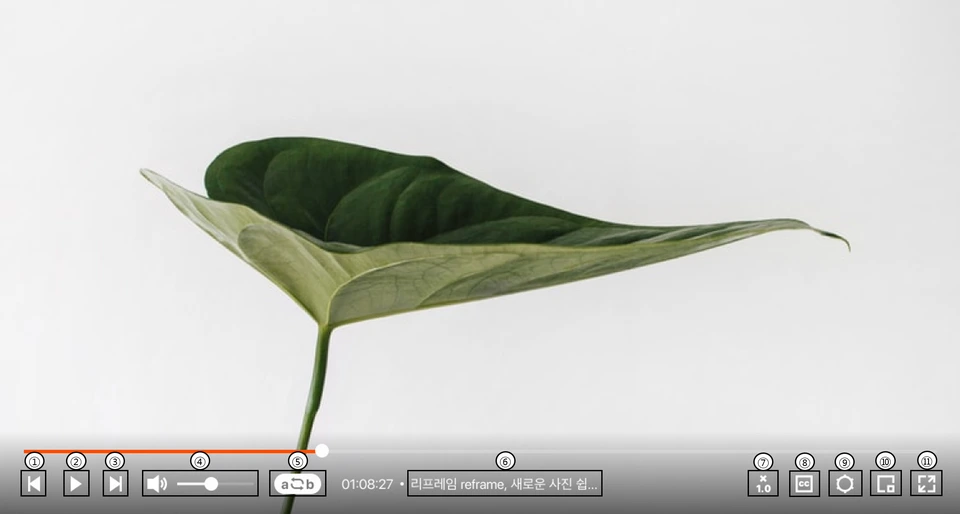
Guide to Key Features of the Lecture Playback Screen

  1. Go Back: Move to the previous section of the video.

  2. Play or Pause: Start or stop video playback.

  3. Go Forward: Move to the next section of the video.

  4. Volume Control or Mute: Adjust volume or turn off sound.

  5. Section Repeat: Use this when you want to repeatedly watch a specific section. Click once to set the section repeat start point, click again to set the end point. Only the set section will automatically repeat, and click once more to disable.

  6. Class Name: The name of the class you are currently watching is displayed.

  7. Playback Speed Setting: You can set playback speed to 0.25x, 0.5x, 1x, 1.5x, or 2x, with 1x as the default.

  8. Subtitles: Subtitles are displayed for videos that have them.

  9. Quality / Auto-play Settings: You can set video quality and whether to auto-play.

  10. PIP mode: The video will appear as a small window in the bottom right corner of your screen even when using other browsers or programs. You can freely adjust the size and position with your mouse.

  11. Full screen: You can view the video in full screen. To exit full screen, press the esc key on your keyboard.

Was this document helpful?

스티븐Edited 2026-05-20 by 스티븐